
Apple Pay has made everyday payments faster, easier, and more secure for iPhone users. Instead of searching for your wallet, you can hold your phone near a contactless reader and approve the payment with Face ID, Touch ID, or your passcode. It is useful in shops, restaurants, taxis, apps, websites, and many other places where digital payments are accepted.
This guide explains how to use Apple Pay in a clear and practical way. You will learn how to set it up, make your first payment, use it safely, and understand what to do if something does not work. The steps are simple, even if you have never used a mobile wallet before.
Understanding Apple Pay and How It Works
Before using it, it helps to answer one simple question: what is Apple Pay? Apple Pay is Apple’s digital wallet service. It lets you store supported debit, credit, and prepaid cards in the Wallet app on your iPhone. When you pay, your real card number is not shown to the shop or stored on the payment terminal.
So, how does Apple Pay work? In simple terms, your iPhone uses NFC, which means near-field communication, to send a secure payment signal to a contactless card reader. Apple says you need a compatible device, a supported card, an Apple Account, and Face ID, Touch ID, or a passcode to set it up. Apple Support also explains that you can use it in stores, apps, on the web, and more.
Why Apple Pay Is Useful for Contactless Payments
Mobile wallets are now part of normal daily spending. UK Finance reported that one third of UK adults used mobile contactless payments at least once a month in 2023, while contactless payments made up almost four in ten payments that year. Its 2025 payment market summary also shows that regular mobile contactless use has continued to grow. This is one reason Apple contactless pay has become familiar to many customers and businesses.
For users, the main benefit is convenience. You do not need to carry every card with you, and payments are often faster than chip and PIN. For businesses, accepting mobile wallets can also make checkout smoother, especially when paired with reliable card payment solutions. Apple Pay is not only for busy retail shops. It can also support flexible payment experiences across self-service points, online checkout, and service-based businesses.
What You Need Before Setting Up Apple Pay
Before you start, make sure your iPhone is ready. Most modern iPhones support Apple Pay, but your bank or card provider also needs to support it. You should also update your iPhone to the latest available iOS version for the best experience.
- A compatible iPhone with the Wallet app.
- A debit, credit, or prepaid card from a supported issuer.
- An Apple Account signed in on your iPhone.
- Face ID, Touch ID, or a passcode enabled.
- An internet connection during setup.
If any of these are missing, the setup may not complete. For example, if your card issuer does not support the service, you may need to use another card or contact your bank.
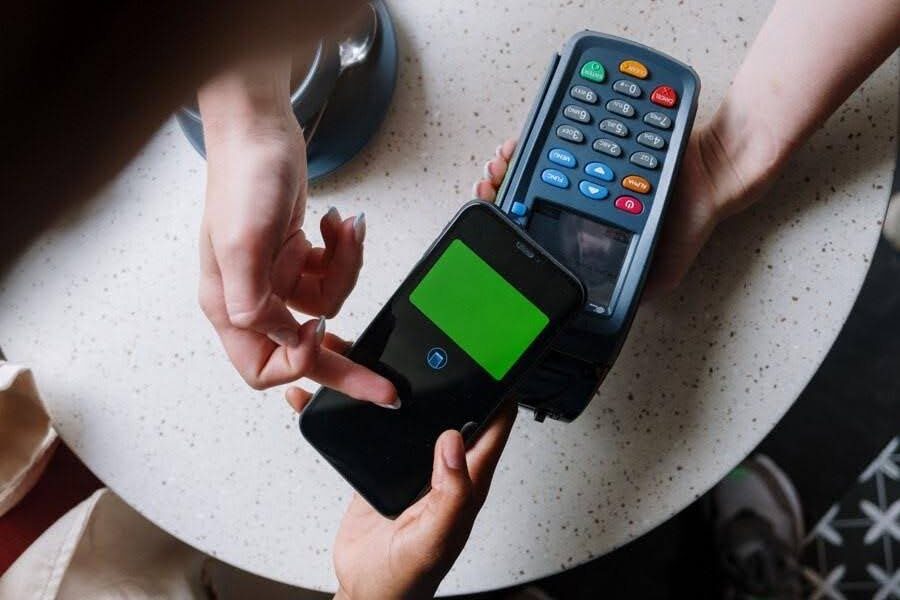
Step-by-Step: Set Up Apple Pay on Your iPhone
Step | What to do |
1. Open the Wallet app | Find the Wallet app on your iPhone and open it. This is where your cards, passes, and some tickets are stored. |
2. Tap the plus button | Tap the + button, usually in the top-right corner. Then choose debit or credit card. |
3. Add your card details | You can scan your card using the camera or enter the details manually. Check the information carefully before moving ahead. |
4. Agree to the terms | Read the card issuer’s terms and conditions, then accept them if you are happy to continue. |
5. Verify your card | Your bank may ask you to verify the card by text, email, banking app, or phone call. Follow the instructions shown on screen. |
6. Set your default card | If you add more than one card, choose the card you want to use most often as your default payment card. |
Once your card is approved, it will appear in the Wallet app. From there, you are ready to make contactless payments in shops and other supported places.
Paying with Apple Pay in Stores
Learning how to pay with Apple Pay is easy once your card is set up. Look for the contactless symbol or Apple Pay logo at the till. On iPhones with Face ID, double-click the side button, look at your screen to approve, then hold the top of your iPhone near the card reader. On iPhones with Touch ID, rest your finger on Touch ID and hold the phone near the reader.
When the payment works, you will usually see Done and a tick on your screen. The terminal may also beep or show an approval message. This is the basic Apple contactless pay process, and it normally takes only a few seconds.
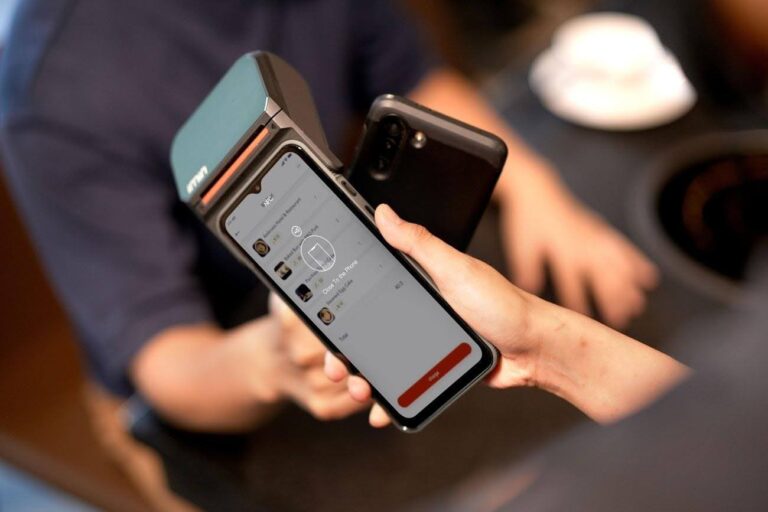
Using Apple Pay Online and In Apps
You can also use Apple Pay in many apps and websites. At checkout, choose Apple Pay as the payment method, check your delivery and billing details, then confirm with Face ID, Touch ID, or your passcode. This can be helpful because you do not need to type your card details each time.
Businesses that take payments in different ways may combine in-person, online, and remote options. For example, some companies use card machines for face-to-face payments, unattended card terminals for self-service locations, and card payments over the phone for orders or bookings where the customer is not physically present.
Apple Pay Safety Tips
Apple Pay is designed with security in mind, but good habits still matter. Only add cards on your own device, keep your passcode private, and do not approve a payment unless you recognise it. If your iPhone is lost, you can use Find My to mark it as lost and help protect your cards.
- Check the amount on the terminal before confirming.
- Use Face ID, Touch ID, or a strong passcode.
- Do not share one-time verification codes with anyone.
- Review Wallet transactions if something looks wrong.
- Contact your bank quickly if you see an unknown charge.
If a message claims there is a problem with your account, avoid clicking unknown links. Go directly to Apple Support or your banking app instead. This keeps your payment details and Apple Account safer.
Common Apple Pay Problems and Quick Fixes
Problem | Quick fix |
Card will not add | Check if your bank supports Apple Pay and confirm your card details are correct. |
Payment not working | Make sure the terminal accepts contactless payments and hold the top of your iPhone near the reader. |
Face ID or Touch ID fails | Use your passcode or check your biometric settings. |
Wrong card selected | Open Wallet and choose the card you want before paying. |
Online checkout issue | Check your billing address, delivery address, and browser compatibility. |
Most issues are simple to fix. If the card is active, your phone is updated, and the terminal accepts contactless payments, the payment should usually go through. If not, contact your card issuer, as they control card approval and verification.
Final Thoughts
Now you know how to use Apple Pay on iPhone for everyday contactless payments. The setup only takes a few minutes, and once your card is added, you can pay in stores, apps, and websites with a simple approval step. For customers, it is fast and easy. For businesses, supporting mobile wallets helps meet the way people now prefer to pay.
If you were wondering what is Apple Pay and how does it work, the answer is simple: it is a secure mobile wallet that lets your iPhone act as a contactless payment method without sharing your real card number at checkout.
FAQs
Can I use Apple Pay without internet?
You normally do not need an internet connection at the exact moment of an in-store payment because the payment uses NFC. However, you need internet during setup, card verification, and for some account updates.
Is Apple Pay the same as contactless card payment?
It is similar because both use contactless technology at the terminal. The difference is that Apple Pay uses your iPhone and adds device-level security, such as Face ID, Touch ID, or a passcode.
Can I add more than one card to Apple Pay?
Yes. You can add multiple supported cards to the Wallet app and choose a default card. You can also select a different card before making a payment.
Does every shop accept Apple Pay?
Not every shop accepts it, but many places that accept contactless payments will also accept Apple Pay. Look for the contactless symbol or Apple Pay logo at checkout.
Is there a spending limit with Apple Pay?
Apple Pay itself does not set the same fixed limit as some physical contactless cards, but your bank, card issuer, or merchant may still apply limits or extra checks.
